
How to use MetaTrader 4 (MT4): the beginner guide
MetaTrader 4 looks intimidating the first time you open it, then it all clicks within ten minutes. This tutorial takes you from install to your first order, step by step, with the right risk-management habits from the start.
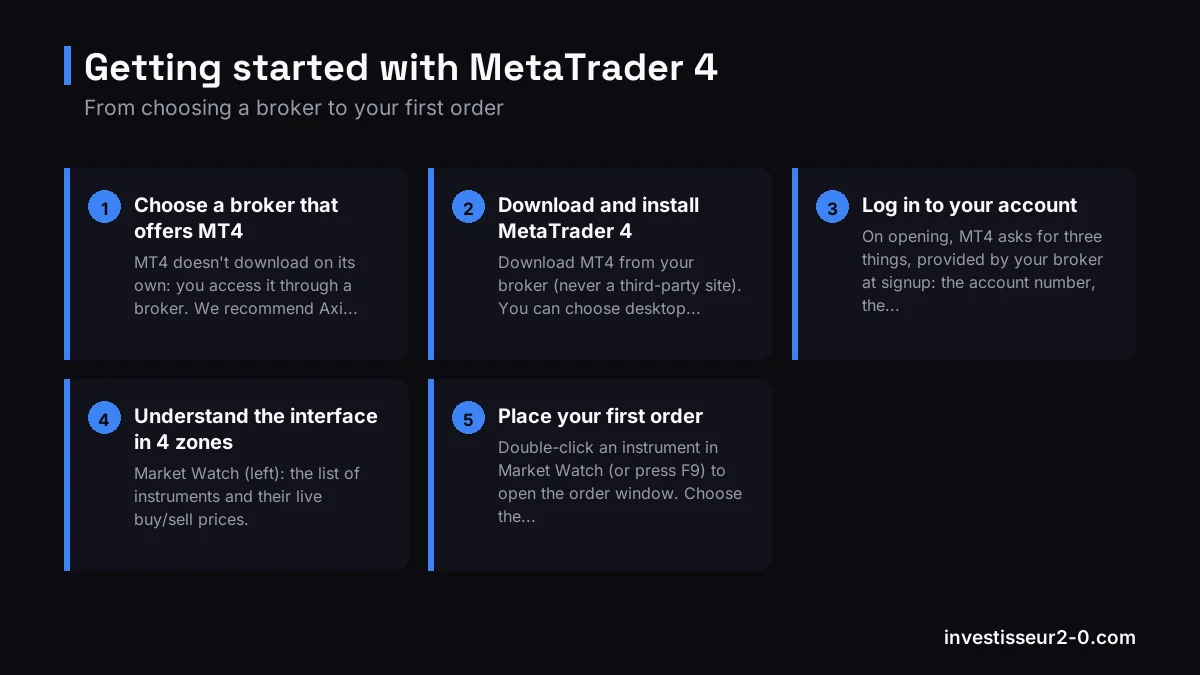
Step 1: choose a broker that offers MT4
MT4 doesn't download on its own: you access it through a broker. We recommend Axi (CySEC-regulated) and BlackBull (which adds MT5, cTrader and TradingView). Open an account with either to get MT4 and your login details: Axi account or BlackBull account. Start with a demo account: same features, virtual money.
Step 2: download and install MetaTrader 4
Download MT4 from your broker (never a third-party site). You can choose desktop (Windows/Mac), web (WebTrader, nothing to install) and the mobile app (iOS/Android). Install, launch, and move on to login.
Step 3: log in to your account
On opening, MT4 asks for three things, provided by your broker at signup: the account number, the password and the server (for example "Axi-Live" or "Axi-Demo"). Enter them and you're connected.
Step 4: understand the interface in 4 zones
- Market Watch (left): the list of instruments and their live buy/sell prices.
- Navigator: your accounts, indicators and robots (Expert Advisors).
- The chart (center): the heart of analysis, with its timeframes (M1 to MN).
- Terminal (bottom): your open positions, history and account balance.
Step 5: place your first order
Double-click an instrument in Market Watch (or press F9) to open the order window. Choose the volume in lots (start small, 0.01 lot), set a stop loss and a take profit, then click Buy or Sell. Never trade without a stop loss: size your position with our risk calculator so you never risk more than 1% per trade.
Step 6: add indicators and robots
To add an indicator (moving averages, RSI, etc.), drag it from the Navigator onto your chart. To automate, install an Expert Advisor (EA) written in MQL4: that's MT4's strength, with the largest robot library on the market. Always test an EA in demo before using it live.
What's next
Torn between MT4 and MT5? Our MT4 vs MT5 comparison settles it. And if you're new to trading, start with our risk management guide: MetaTrader is a tool, your discipline does the rest.
FAQ
How do I download MetaTrader 4?
From your broker (Axi, BlackBull), never a third-party site. Desktop, web and mobile versions available.
How do I place an order on MT4?
Double-click the instrument or press F9, choose the volume, add stop loss and take profit, then Buy or Sell.
Is MetaTrader 4 free?
Yes, the platform is free through your broker. You only pay trading costs. The demo account is free too.
Disclaimer. CFD trading on MetaTrader carries a high risk of rapid capital loss due to leverage. Most retail accounts lose money. This article is educational and not investment advice.